



Zoom for desktop and mobile is a platform for video conferencing, recording meetings, chatting, screen sharing, and more. Zoom’s robust Breakout Rooms allow you to split your meeting up into 50 different sessions, ideal for team and project-based classes and meetings.
Zoom has several engagement features, including setting your own virtualized background image, breakout rooms, polling, and nonverbal feedback. Take advantage of a seamless Chrome extension integration to make easy-to-schedule meetings straight from your Google calendar with a click of a button.
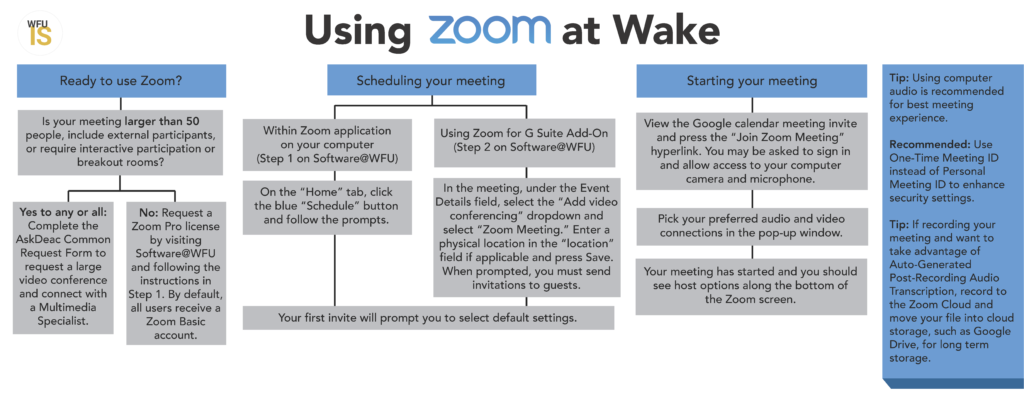
Using Zoom at Wake
Recording Best Practices
When recording your Zoom meeting you have the option to record to your local computer or the Zoom Cloud, which has limited short-term storage available. For long term storage, we recommend adding your cloud or local recording to a cloud storage solution, such as Google Drive or Kaltura.
Keep in mind that auto-generated post-recording audio transcription is turned on by default when recording to the Zoom Cloud. Cloud recordings can only be shared with authenticated WFU users. Only the host of the meeting can download Zoom Cloud recordings.
Effective June 15, 2021, any video over 180 days old will be moved to your Zoom Cloud trash. Items in your trash will remain accessible for 30 days. The 180 day limit ensures our faculty colleagues can maintain class recordings through the entirety of a semester.
Security Best Practices
- Never share your meeting link on social media or other public forums, as doing so will publicize your meeting to potential abusers.
- Don’t use your Personal Meeting Room/ID to host public events. Your Personal Meeting Room/ID is basically one continuous meeting that outsiders can abuse.
- Enable a Waiting Room. This is a helpful feature for hosts to control who comes and goes.
- Only allow vetted participants to join your meeting.
- Disable privacy chat, screen sharing, and annotation.
- Prevent participants from renaming yourself.
Faculty, for some tips and tricks on how to keep your Zoom classrooms secure, check out the Zoom help article How to Keep the Party Crashers from Crashing Your Zoom Event.
Updating Zoom
Make sure to update the Zoom application on your computer regularly to ensure access to the most current features. Manually check for updates and run updates through the menu on the Zoom client. For further instructions on updating, check out this Zoom help article.
If you are interested in learning about what previous or upcoming update releases entail, check out Zoom’s release notes.
Pro Accounts
Faculty, staff, and students are automatically provisioned Zoom Basic accounts when they sign in to Zoom. If you would like a Zoom Pro account, request one via the Zoom Pro License Common Request.